> ## Documentation Index
> Fetch the complete documentation index at: https://docs.workfloo.ws/llms.txt
> Use this file to discover all available pages before exploring further.
# Install n8n community node
> Learn how to add the community node to your n8n instance
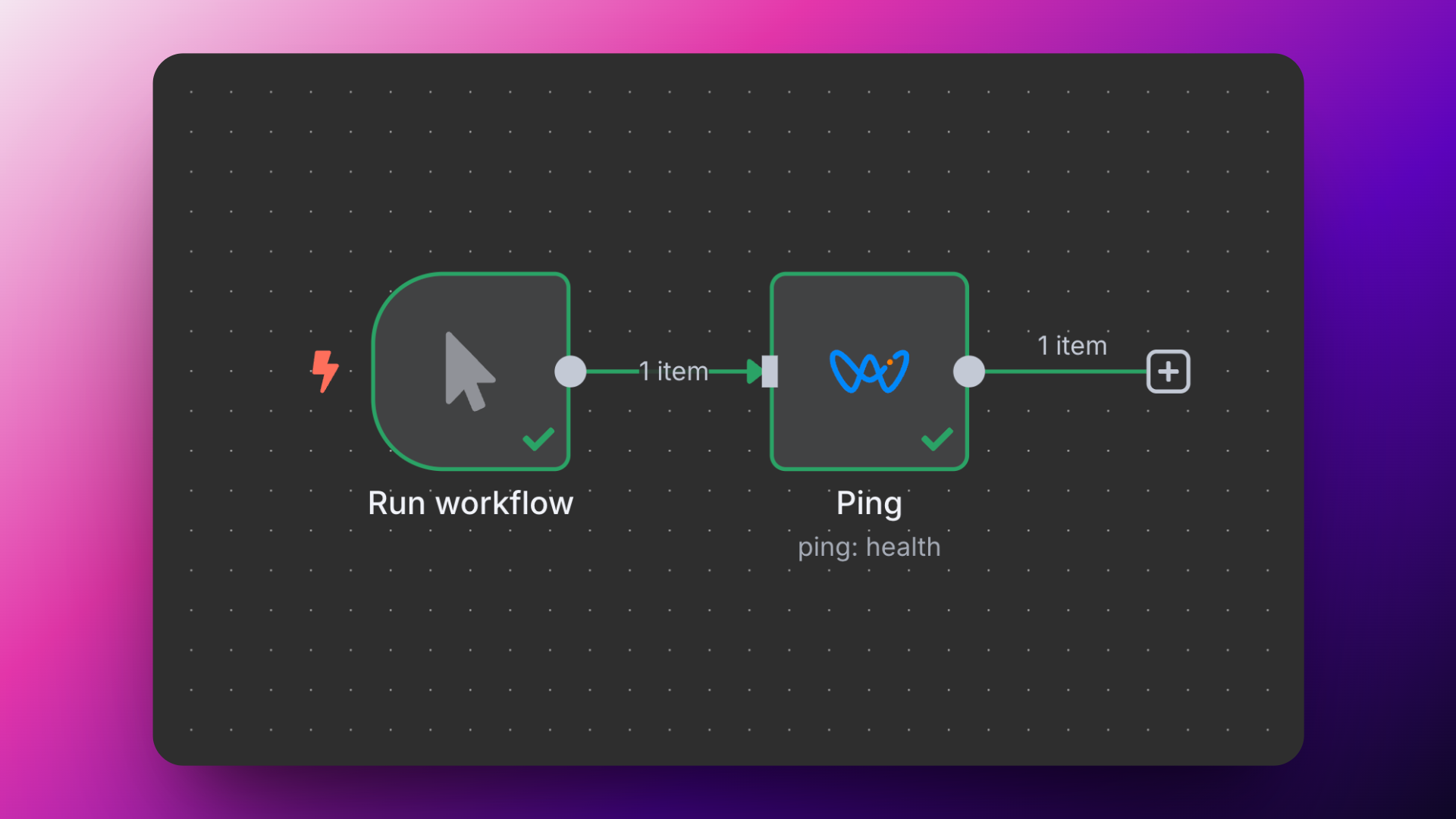
You can easily add Workfloows APIs to your n8n automations **using community node.**
Workfloows community node is currently available **only for self-hosted n8n instances.** It's not available for n8n Cloud.
Visit npm directory page to get more information about the node.
 ## Connect with AI agent
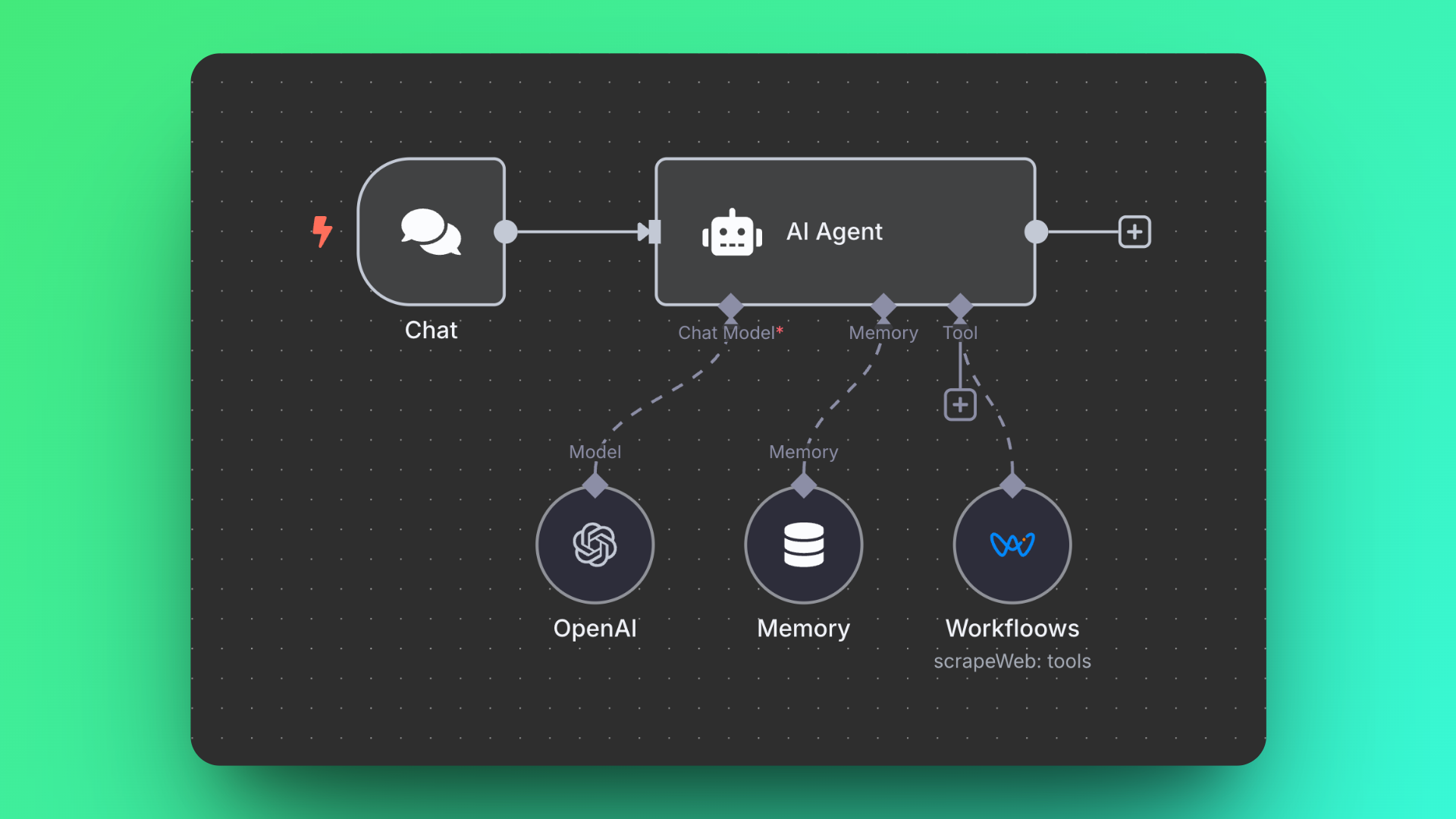
It's also possible to connect the node to AI agent **and use Workfloows APIs as tools.** You can easily build your own agentic crawler or data enrichment system.
## Connect with AI agent
It's also possible to connect the node to AI agent **and use Workfloows APIs as tools.** You can easily build your own agentic crawler or data enrichment system.
 ## How to install
You need to have self-hosted n8n instance to use the node. It's not currently available on n8n Cloud.
Go to **Settings** and click on **Community nodes**. Then click on **Install.**
Enter `n8n-nodes-workfloows` as a package name and select checkbox to agree with risks of installing community nodes.
Click on **Install** button to install the node.
Workfloows node is now available in nodes directory and ready to use in your automations.
## Adding credentials
Click on the **+** button at the top of the n8n sidebar and select **Credentials.**
From the list, choose **Workfloows API.**
Paste your API key into the "API key" field.
Click on the **Save** button to save the credentials. It should automatically run connection test to check if the credentials are valid.
## How to install
You need to have self-hosted n8n instance to use the node. It's not currently available on n8n Cloud.
Go to **Settings** and click on **Community nodes**. Then click on **Install.**
Enter `n8n-nodes-workfloows` as a package name and select checkbox to agree with risks of installing community nodes.
Click on **Install** button to install the node.
Workfloows node is now available in nodes directory and ready to use in your automations.
## Adding credentials
Click on the **+** button at the top of the n8n sidebar and select **Credentials.**
From the list, choose **Workfloows API.**
Paste your API key into the "API key" field.
Click on the **Save** button to save the credentials. It should automatically run connection test to check if the credentials are valid.